Introduction:
Do you want to dual boot Linux and Windows ? – If yes, then follow these steps listed below and do your best.
If you want to do gaming and other tasks in Windows, Linux is a widely used operating system. If you want to dual-boot both operating systems, Windows and Linux, then follow these steps and read to gain more knowledge.
By the end of this blog, you are going to be able to dual-boot your operating systems, Windows and Linux. Stay free and learn this.
What is Dual Boot ?
Dual boot is a process in which two operating systems are installed on a single computer. A user can use one operating system at a time, but wants to change his/her operating system according to their work.
When you have a dual boot, when you start your computer, it give option to choose an operating system.

Dual Boot -Example
- Linux(Ubuntu) + Windows(11)
- Linux (Fedora) + Linux(Ubuntu)
- Windows(11) + Linux(Arch)
- Linux(Mint) + Windows(11)
Why Should we choose dual boot ?

There are dozens of options from which we should definitely choose both operating systems.
- Best of Both Worlds – Having two operating system give the chance of using either first or second. People can differentiate operating systems by their work. People can learn another operating system.
- Safe way to learn Linux – When people dual-boot their Linux operating system with another operating system like windows they get a safer way to use Linux because Linux is a very stable operating system.
- Faster method – Using a dual boot makes the secondary operating system much faster than using it in a virtual computer. When we use a virtual computer, it consumes more RA, whereas using a dual boot makes the computer faster by using a single memory.
- No Virtual Machine – When we use dual boot, we don’t need to installVirtualBoxx and we can do anything on secondry operating system and be safe.
Things needed before Dual booting;
There are many things that need to be considered while doing a dual boot because if some misss heppenning happen, then all of the data and important documents might get damaged, and sometimes in a serious case, it might not be recoverable.
- Backup Important Data – Before doing a dual boot, you should takea backup of all data you have, like photos, videos, document and many more things.
- USB Drive – The most important thing you need while dual booting isa USB pendrive or an installation media. CD is now not popular,r so a Pendrive is recommended. At least 8GB is required.
- ISO File – While creating installation media, you need an ISO file of that particular operating system. If you don’t have it Download ISO File.
- Software – Before creating a bootable USB drive, you need software that formats peidrive and makes it bootable pendrive. The best and recommended booting software is Rufus. Downlod forus from Download Rufus.
These things should be considered while creating a bootable pendrive and creating a dual boot. If this requirement is fulfilled, then you can learn behind.
Wanna more content like these ?
If you wanat more content like this please visit our website and from there you can get more related content like this including linux.
- Website – The Hi-Tech Hub.
Which Linux is best for dual-boot ?
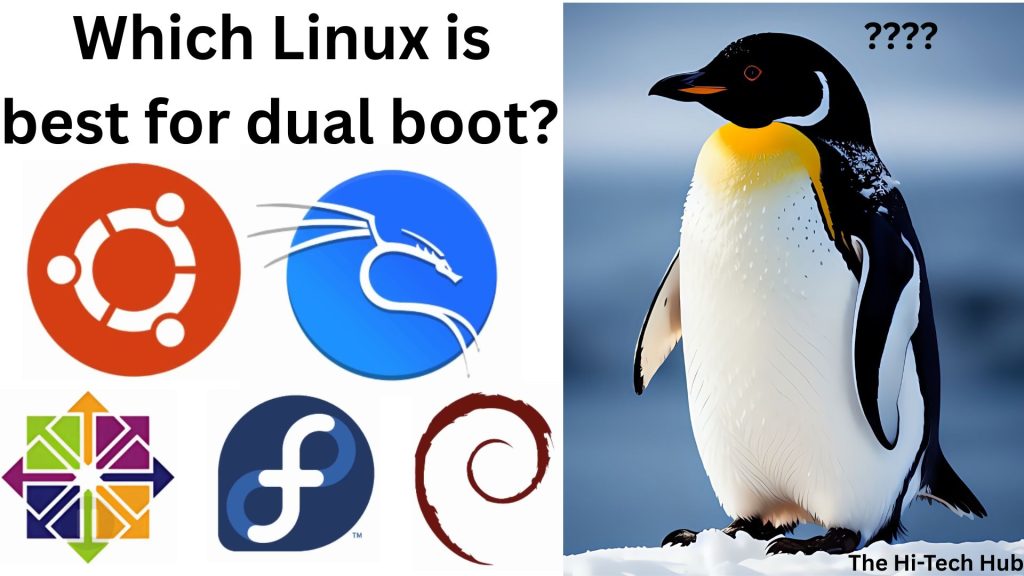
There are various operating systems like Ubuntu, Mint, Fedora, Arch, Kubuntu, Parror, and any other,r including Kali. Distribution for dual boort is as follows:
- Ubuntu – Ubuntu is the most installed Linux distro. It is easy to use and download. The latest Ubuntu operating system is 25.04 LTS. Download
- Mint – Mint is also one of the easiest to installaton linux distrobution from which it is easier to install and dual-boot. Download.
- Debian -Debian is also one of the most installed and easiest to use and install Linux operating systems. Download
Why to choose these Distribution ?
We should choose these operating systems listed above(Ubuntu, Mint, Debian) for these reasons.
- Easy to Use – These operating systems’ distros are very popular and easy to use because of it’s beginner frendly User Interface.
- Large Community – Because of their very high popularity, they have a large community and have more support and tutorial help.
- Best Hardware support – Because of their popularity, they have got much hardware support,t and most of these devices support these operating systems.
- Windows-like Interface – The Mint distro have windows like interface, from which new users from Windows can feel easy to use.
- Lightweight – This operating system (Mint) is light weight from, whichmakes it ceasy torun in low end computer.

Let's Start Installation Process.
1. Check you system installation type
You have to check whether your computer has UFEIorf LEGACY operating method. If you have UFE,I then you need to install UFEI, and if it has LEGACY, then you need to install LEGACY one.
How to check system type:
- Press Windows Key + R – This wil open the search bar.
- Search ‘msinfo32’ and then type enter.
- Search for ‘BIOS MODE” and if fount then.
- Finalize which sytem your computer uses – if it says UFEI then it is ufei and if it shows LEGACY it will be legacy.
2. Create free space for Linux
Dual-boot Linux requires its own space for installation, so we need to specify the space for installing it.
How to create a free step for Linux:
- Press Windows + X.
- Click Disk Manager and open it.
- Right-click on “C: Drive”.
- Click the Shrink Volume button and make it smaller.
- Allocate at least 30-50 GB minimum.
– Do not create a new partition.
# Image suggestion:
- Image Name: shrink-window-partition.
- Alt-Text: Shriking windows partition for adding Linux
3. Create Linux Bootable USB
You have to make a Linux bootable pendrive through which you can install Linux in the place that you have located in step 2.
- Insert the USB drive into your computer.
- Open Rufus software.
- Select the Linux ISO file.
- Choose partitation scheme GPT for UFEI and the file system FAT32.
- Click Start – It will start the process of turning the pendrive to bootable pendrive.
# Image Suggestion:
Alt Name: Create-linux-bootable.png
Alt-Text: making-linux-bootable-pendrive-by-using-rufus-app
4. Boot from pendrive
- Restart your computer.
- Press buut menu key – F12, F10, ESC,DEL.
- Select your USB drive.
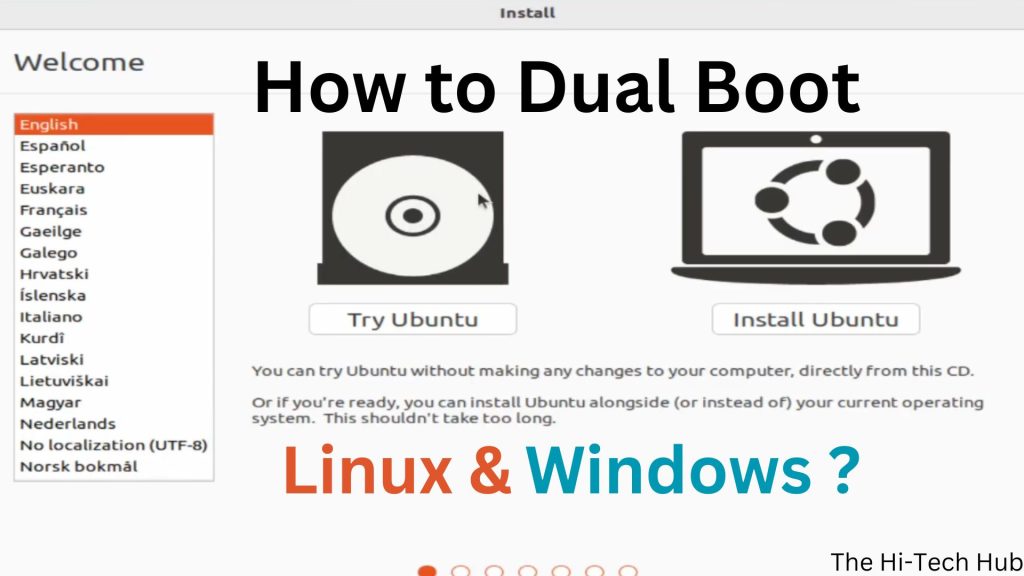
- You will see one option: Try or Install Ubuntu. Click that.
5. Start Linux installation media
When your computer orUbuntu fullyy loads, it will show you a screen, and you have to select these options.
- Click installUbuntuu.
- Select your language.
- Choose keyboard layout.
- Choose Normal installation.
- Tick, download updates and install third party softwares.
6. Choose installation type
Select – “Install Ubuntu alongside Windows boot manager.”
Warning: – Do not choose the option “Erase Disk”, this will earase whole disk and also remove Windows.
# Image Sugugestion:
- Image Name: Install-ubuntu-along-with-windows.png
- Alt-Text: install Ubuntu alongside Windows.
7. Allocate Disk Space
- Use the slide bar to adjust the requirement.
- Recommended: (30-50) GB at least for smooth function. If you have,e you can also add more.
- After this, click “Install Now.
8. Finish Installation
- Select your time zone.
- Create a username and password.
- Wait for the installation to be completed.
- Restart your computer.
- When told, remove the installation media (pen drive).
- Then press “Enter“.
9. Dual boot menu (GRUB).
After this installation, you can see the GRUB(Grand Unified Bootloader) boot menu will open. You can see a screen showing.
- Ubuntu
- Windows Boot Manager
Congratulation! You have successfully installed dual boot linuxu and Windows.

Common Problem and solution.
1. Windows not showing in boot menu.
If windows option “Windows Boot Manager” is not showing in its boot menu, you can follow these steps to fix that.
- Choose Linux.
- After this, open a terminal or press “CTRL + ALT +; T;” this will open a terminal.
- Paste “sudo update-grub.”
- Enter and then type the password, it will not show writing, and then press enter.
- This will begin auto solution, and therestartaandndt then it will show.
2. Secure Boot Issue
Disable the Secure Boot option from bios.
- Go to BIOS- press F2 and other for the laptop company.
- Enter BIOS / UEFI settings.
- Click go to Boot, Security, or Authentication Lab.
- Find secure boot.
- Disable SecureBoot from Enable.
- Restart your computer.
This will turn off “Secure Boot” on your computer.

3. Wifi Not Working
If your computer’s wifi is not working, you can install additonal driver to your computer to make it run easily and smoothly. You can install it from “Software & Updates.
Is dual boot safe ?
Yes, it is safe if you follow these steps well.
- Backup – If yo backup all of your important data well, including photos, videos, audios, pdf, and documents.
- Follow Steps- If you have followed these steps carefully, you can easily make a dual boot without error.
- Choose the correct installation option.
| Feature | Dual Boot | Virtual Machine |
|---|---|---|
| Performance | High | Medium |
| Hardware Access | Full | Limited |
| Gaming | Better | Poor |
| Battery | Efficient | High usage |
Conclusion:
Dual boot is a very good option in which people can use two operating systems easily without reducingperformancee. Performance is very nice compared to a virtual machine. People use dual boot to learn about other operating system like linux in this example, without risking other operatin system.
People use dual boot for high performance, full hardware access, better gaming, and efficient battery. If you want to run two operating systems at once, we recommendthat you do a dual boot. In the above step, we have clearly written about how to install it. If you follow this, you will be able to do it professionally without data loss.
Table of Contents
Toggle